The Scentsy Pay Portal is separate from consultant Workstation. It is the official payout environment for eligible consultants and includes funds, transfers, history and support tools.
Quick answer: Scentsy creates the Pay Portal account on the consultant’s behalf, sends an activation email, and requires separate portal login and authentication.
Independent informational guide. This website is not owned, operated, endorsed or authorized by Scentsy, Inc. Enter account credentials only on a verified Scentsy-controlled website.
What Is the Scentsy Pay Portal?
The portal is designed for consultant payout access. It is not the Workstation business dashboard and not the customer shopping account. Available features depend on account, country and program eligibility.
For related guidance, use the Workstation dashboard guide.
How to Activate and Log In to Scentsy Pay Portal
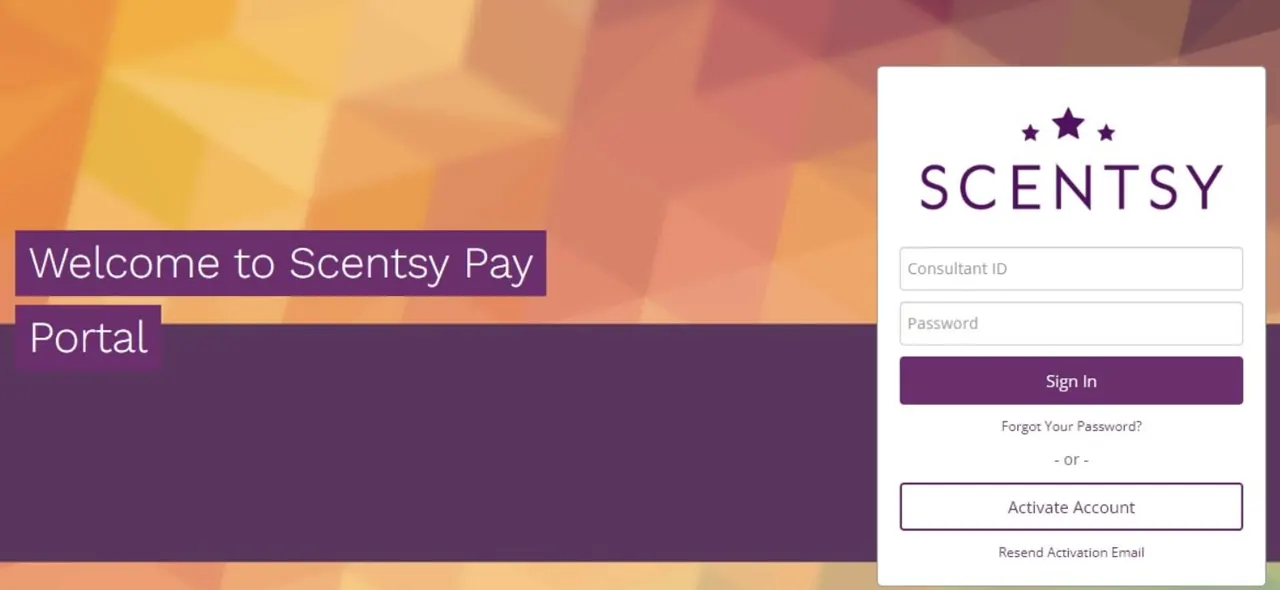
- Wait for the official activation email after Scentsy creates the Pay Portal account.
- Open the verified activation link or official Pay Portal.
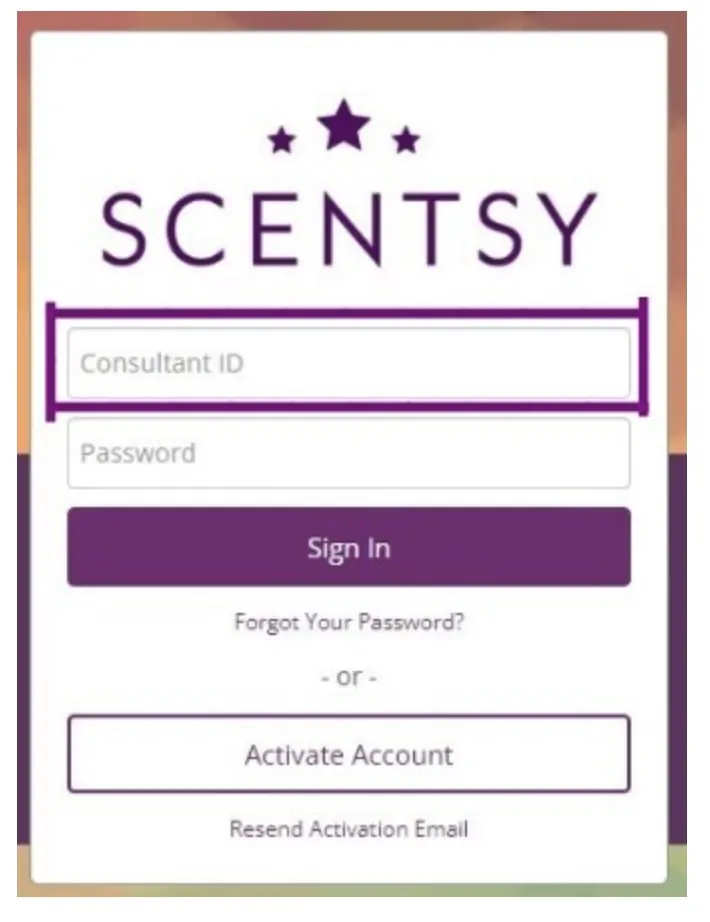
- Enter the Account ID or other details requested on the official activation screen.
- Complete identity verification inside the portal.
- Create the Pay Portal password and security preferences.
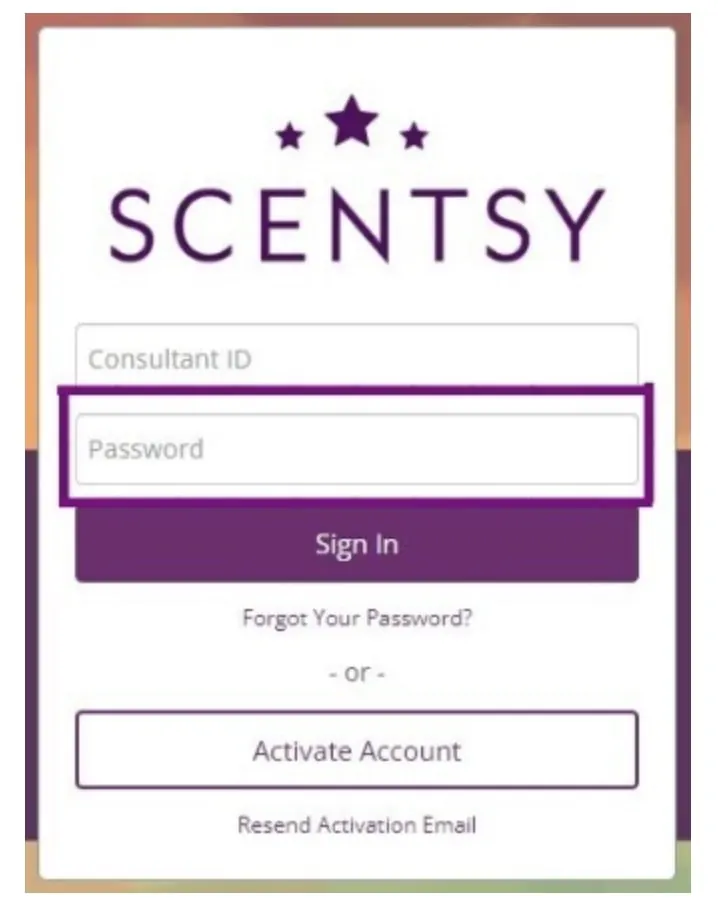
- Return to the login page and enter the Pay Portal credentials.
- Complete the selected authentication method and verify the funds dashboard.
For related guidance, use the Scentsy Login Safety and Verification.
Activation and returning login are separate actions. Use the matching step below and follow the current prompts inside the official Pay Portal.
Pay Portal Dashboard
Official getting-started documentation identifies notifications, available funds, support and fees, plus self-service transfer tools and transaction history. The live dashboard is the authority for the methods and charges available to a specific account.
Mobile Access
The official Pay Portal mobile app can display available funds, transfers, transaction history, card activity where applicable and transfer methods. Install only from the link or store publisher identified by the official Pay Portal.
For related guidance, use the Scentsy Workstation Mobile Login.
Exact Login Fixes
| Problem | Action |
|---|---|
| Activation email missing | Wait five days after sign-up, check spam for Hyperwallet messages and contact support. |
| Password forgotten | Use the official Pay Portal reset process. |
| Authentication code unavailable | Choose another offered method, then update contact details after login. |
| Error 104 | Stop repeated attempts and contact Pay Portal support. |
| Workstation works but Pay Portal does not | Treat them as separate accounts and verify activation. |
For related guidance, use the Scentsy Consultant Support and Account Help.
Transfers, Fees and Account Records
Transfer methods, processing times, prepaid-card functions and fees can vary by country and account program. Use the live Pay Portal dashboard and legal/fee links as the final authority. Before sending a transfer, confirm the destination and review any displayed fee.
Keep confirmation emails and transaction records needed for legitimate accounting and tax purposes. If an expected payout is not visible, compare the Workstation reporting period with the Pay Portal transaction date before opening a support case. Never publish a balance or full transaction screenshot on an independent website.
Frequently asked questions
Is the Scentsy Pay Portal page on this website an official account page?
No. This website provides independent instructions only. Use the linked official destination for any account action.
Can this site see my Pay Portal account?
No. There is no connection to Scentsy or Hyperwallet systems. Contact official support for account-specific information.
Should I enter my password on this website?
No. Credentials belong only on a verified official login page. Check the hostname before typing sensitive information.
What should I do when the instructions look different from my screen?
Follow the live official screen. Scentsy can change labels, menus and market-specific flows. Use the purpose of each step rather than forcing an outdated button name.
How current is this Scentsy Pay Portal guide?
The guide is reviewed against public official sources. Private account screens can change without public notice. Use the last-verified date and report a mismatch through the corrections page.
When does Scentsy create the Pay Portal account?
Official FAQs say five days after consultant sign-up. Scentsy creates it on the consultant’s behalf. Watch for the activation email and contact Pay Portal support if it does not arrive.
Is the Pay Portal password the same as Workstation?
Not necessarily. The Pay Portal is a separate Hyperwallet-powered account. Use the credentials established during Pay Portal activation.
What can I do in Pay Portal?
You can manage eligible funds and payout tools. Official documentation lists available funds, transfers, history, transfer methods, notifications, support and fees. Use the live portal for the options available in your country.
How do I reset a Pay Portal password?
Select Forgot Your Password on the official Pay Portal login. The portal sends a reset link to the registered email and may require additional authentication. Complete the official steps and return to login.
What is Pay Portal error 104?
It is a security protection related to the connection or repeated failed access. Official FAQs say it can occur on a new connection, after wrong passwords or on locked public Wi-Fi. Contact Pay Portal support with the requested connection information.
Official and primary sources
Last verified: 2026-07-22
- Scentsy Pay Portal FAQs — Activation timing, login, password reset, authentication, error 104 and support.
- Scentsy Pay Portal getting started — Portal dashboard, funds, transfers, support, fees and mobile access.
- Scentsy Pay Portal mobile apps — Available funds, transfers, transaction history and transfer methods on mobile.
- Join Scentsy — Enrollment, Starter Kit, consultant responsibilities, PRV, party plan and official support.
- Compensation and Income Disclosure — Official compensation terminology and income disclosure.
Related guides
- Scentsy Workstation Login Guide for Consultants — Consultants should open the official Workstation page, verify the Scentsy-controlled domain, and enter credentials only there. Customers use the Scent
- Scentsy Consultant Login and Dashboard Access — Open the verified Workstation page, confirm the domain, enter the account information requested there, and use official password reset or support when
- Scentsy Workstation Mobile Login — Open the verified Workstation page, confirm the domain, enter the account information requested there, and use official password reset or support when
- Scentsy Consultant Support and Account Help — Start with the sponsor or team, then use official Consultant Support; use Pay Portal support for payout-account access.